Your profile
View and edit your profile, change your picture, and visit your organization tab.
The User Profile page has three tabs:
- Profile — name, username, email, profile picture.
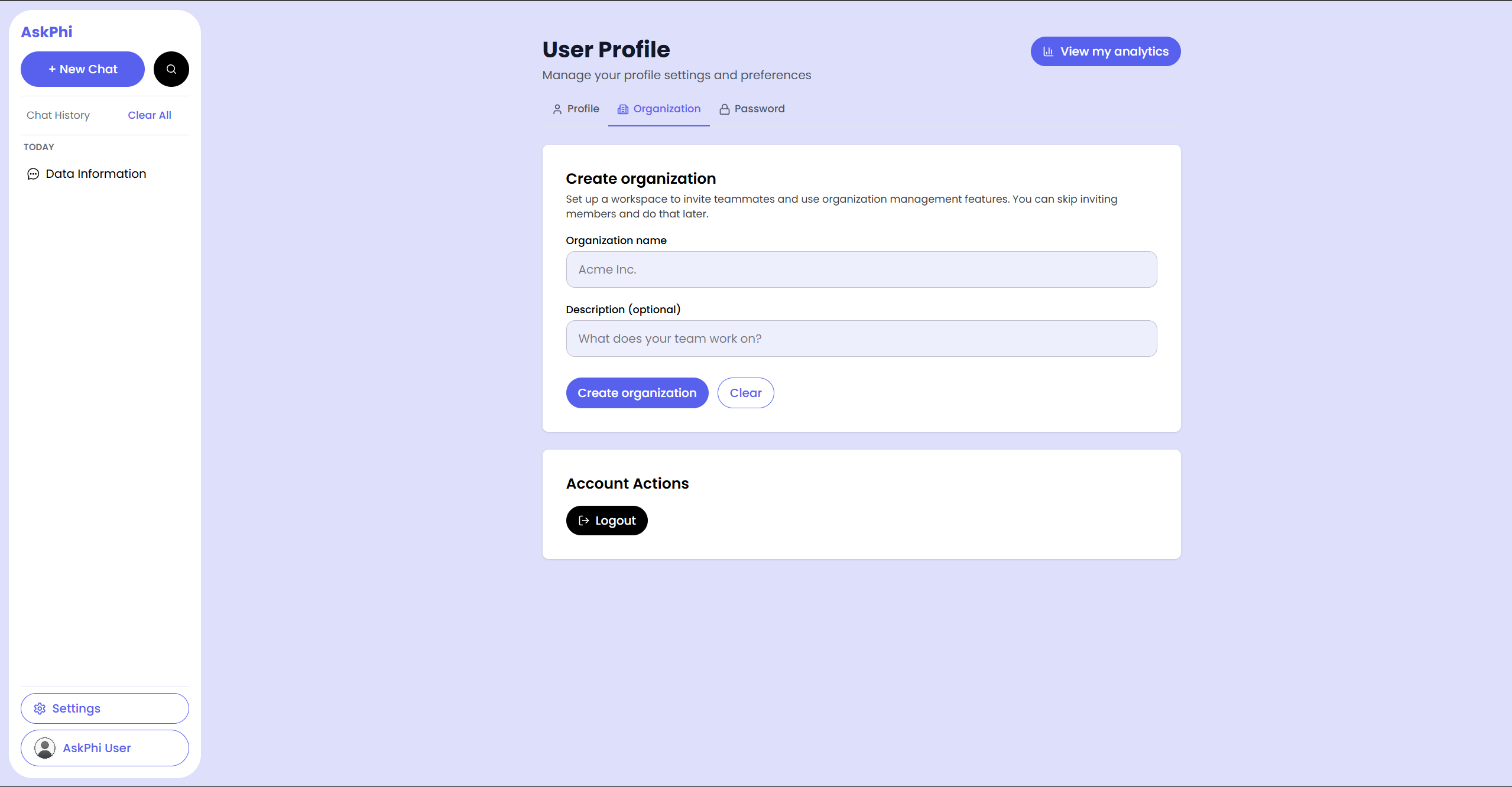
- Organization — your organization details, or a form to create one.
- Password — change your password.
How to open
Click your name or avatar at the bottom of the left sidebar, or visit
/user/profile directly.
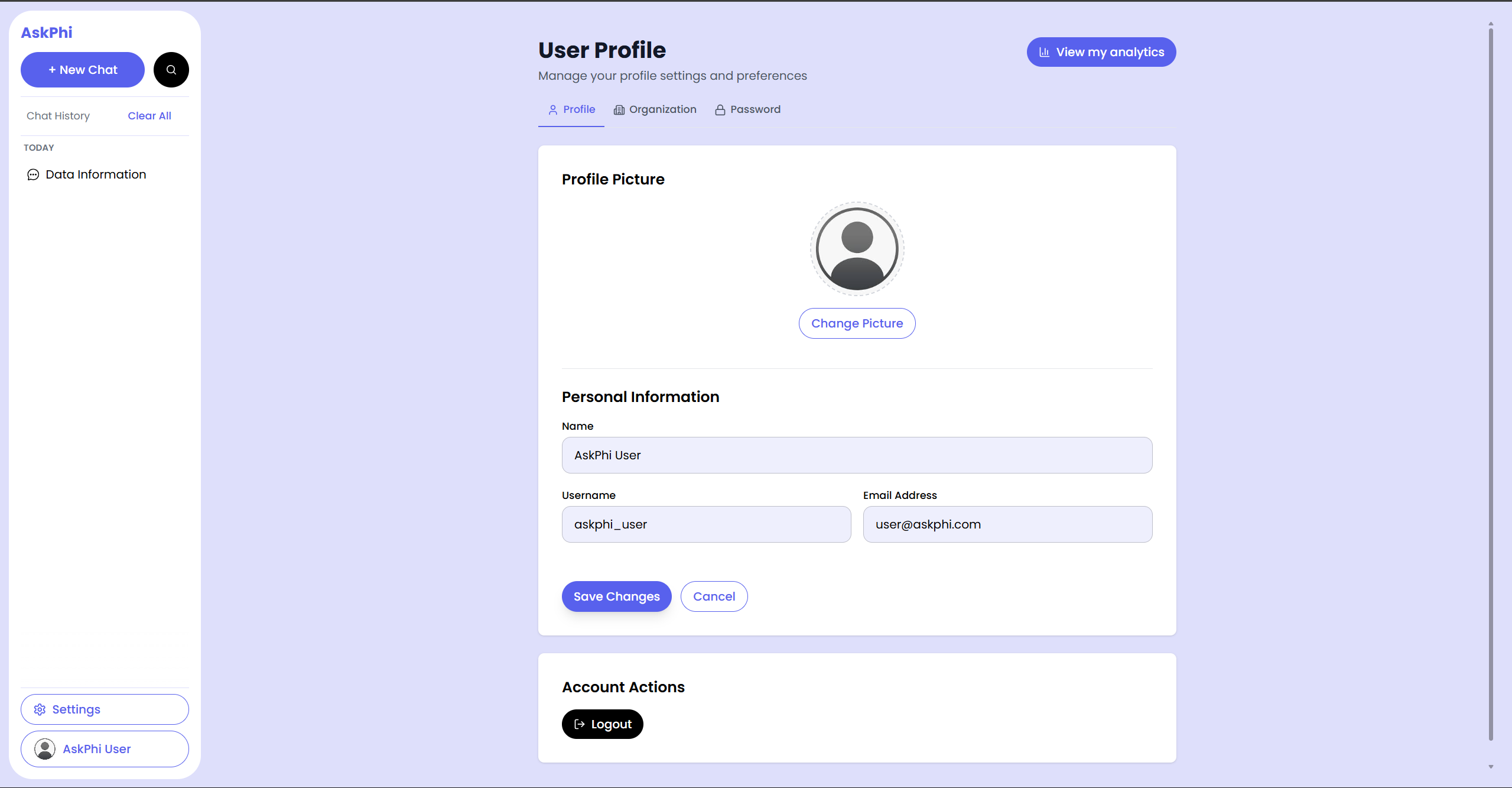
Edit your personal info
- Open the Profile tab.
- Update Name, Username, or Email Address.
- Click Save Changes.
A "Profile updated successfully!" toast confirms.
noteUsername changes follow the same rules as during registration: lowercase, 3–30 characters, no spaces.
Change your profile picture
- Click the avatar at the top of the Profile tab.
- Pick an image file from your device.
- Crop it (drag the edges) and click Save.
The new picture appears in the sidebar within a second.
Visit the Organization tab
If you're a member of an organization:
- You'll see the organization name, your role (e.g. member, admin, owner), and shortcuts to Open management and Organization settings (depending on your permissions).
If you're not in an organization:
- The tab shows a Create organization form. See Create an organization.
See your personal analytics
Personal users (no organization) see a View my analytics button at the top right of the profile page. Click it to jump to My storage and My tokens.