Quick start
Sign up, upload your first CSV, and start chatting with AskPhi in under five minutes.
Before you start
- A modern browser (Chrome, Edge, Firefox, or Safari — see System requirements).
- A small CSV file ready to upload (up to 10,000 data rows).
- 5 minutes.
Step 1 — Create your account
- Open AskPhi and click Register at the bottom of the sign-in form.
- Fill in Name, User name, Email Address, and Password. Your username must be lowercase and 3–30 characters.
- Click Sign up.
You'll land on the Create your organization screen.
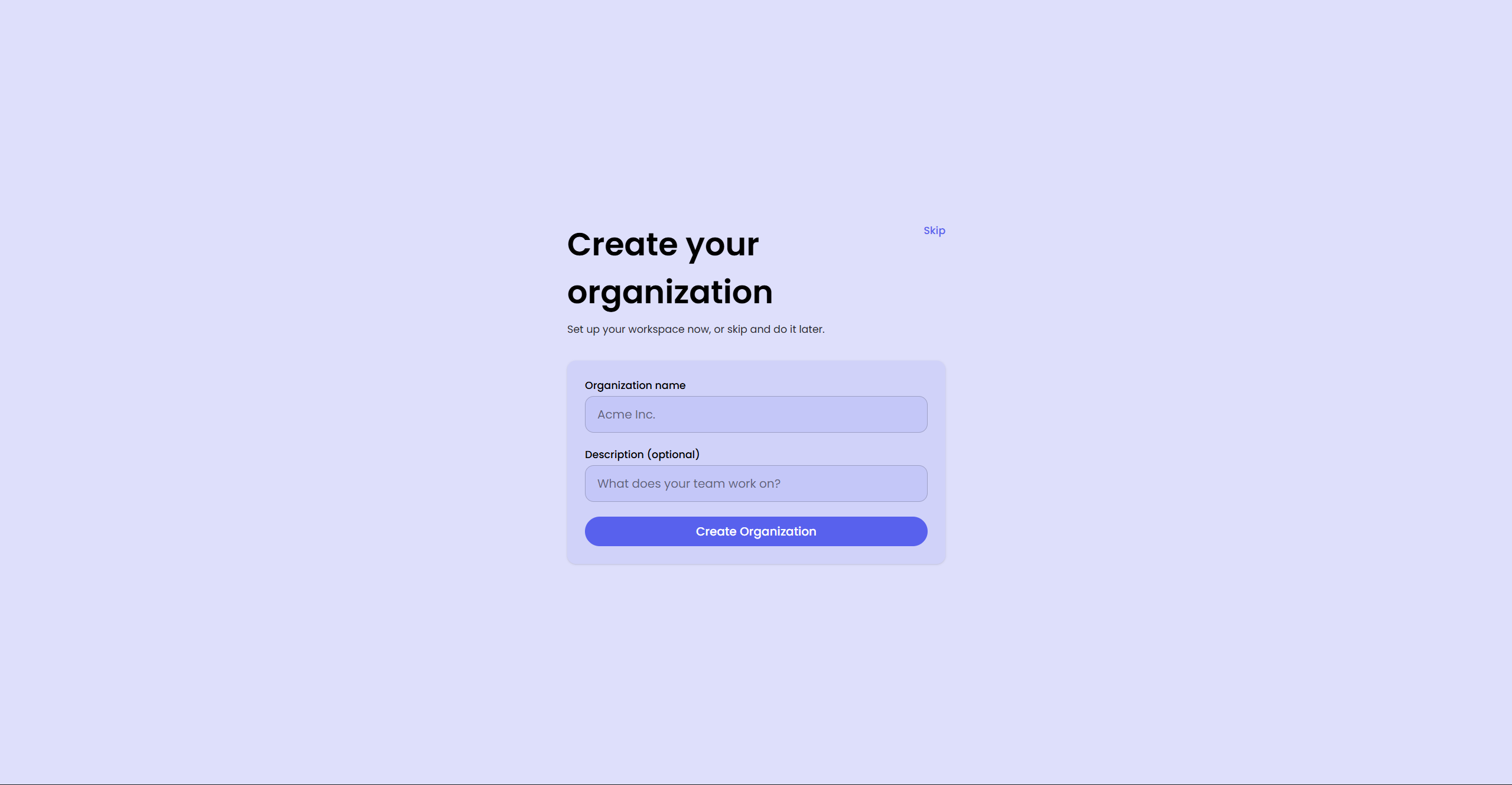
tipThe first time you sign up, AskPhi offers to create an organization for you. You can Skip and stay in personal mode for now.
Step 2 — (Optional) Set up your organization
If you plan to collaborate:
- Enter an Organization name and an optional description.
- Click Create Organization.
- On the next screen, add teammate emails (one per row) and click Send invitations — or click Skip to invite people later.
If you'd rather work alone, click Skip on either screen. You can create an organization later from your profile.
Step 3 — Upload a CSV
- From the sidebar, click + New Chat (or wait — you'll be on the chat home automatically).
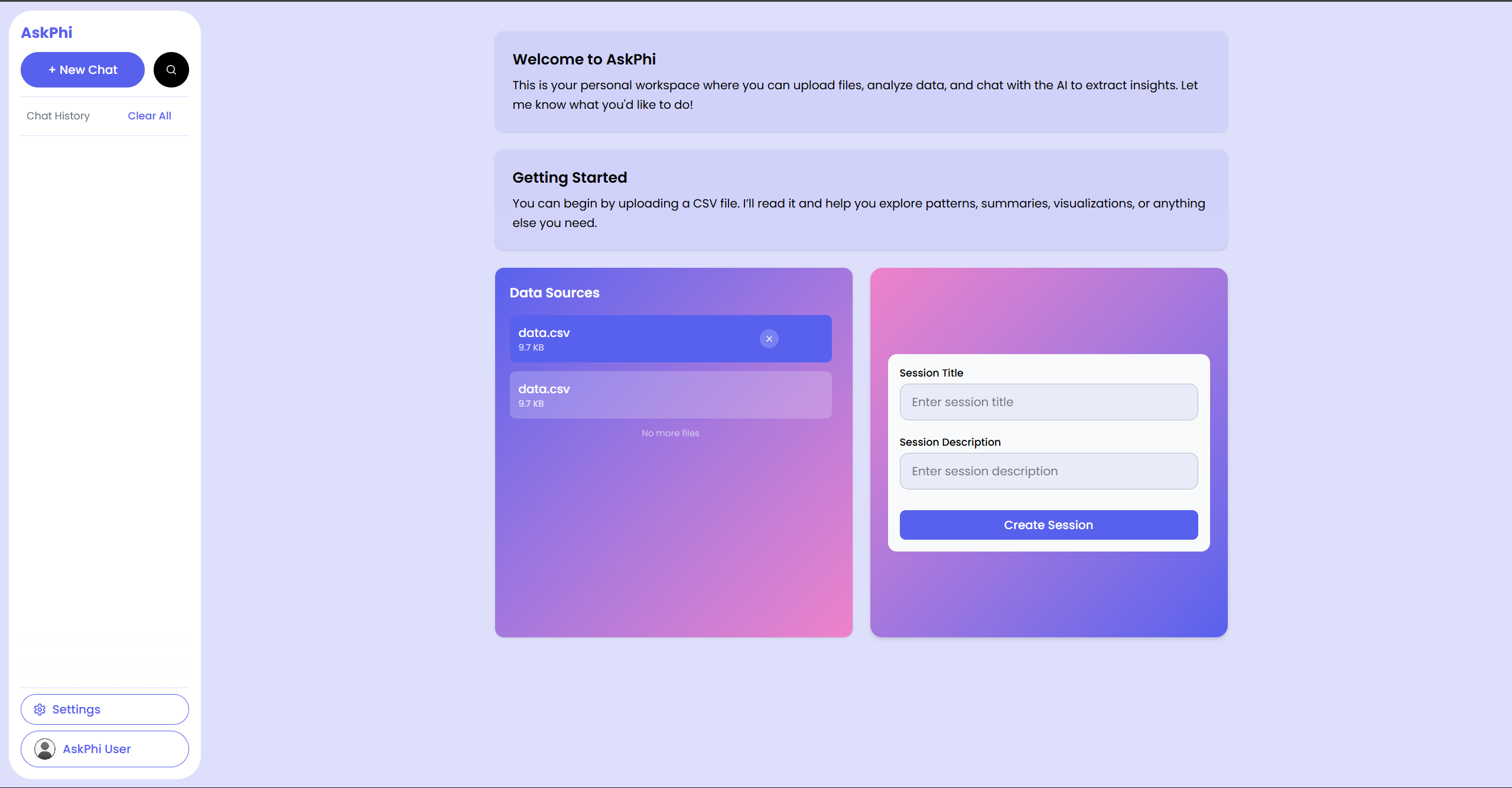
- In the Upload New Data Source card, drag a
.csvfile onto the drop zone, or click to browse. - When the file appears in the preview, click Upload File.
- Wait for the green progress to reach 100%. A "File uploaded successfully!" toast confirms.
For details and limits, see Upload a CSV.
Step 4 — Start a chat session
After upload, the file is selected automatically. The right card becomes a Create Session form.
- Type a Session Title like
Sales reviewand an optional description. - Click Create Session.
You'll be taken to the chat for that session.
Step 5 — Ask the AI a question
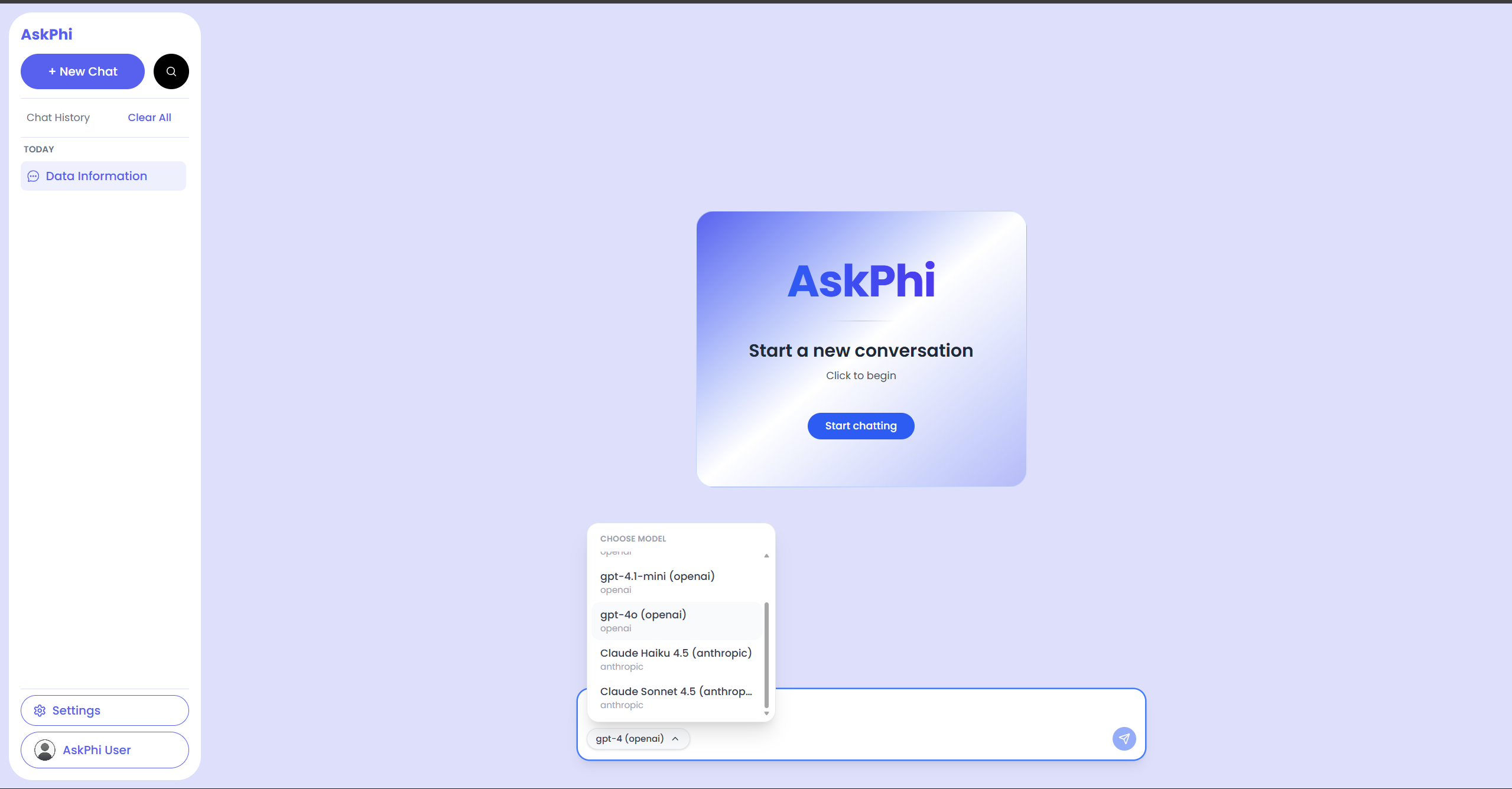
- Click the small model selector to pick a model if needed.
- Type a question into the input — for example,
What columns does this file have?orShow me total revenue by month. - Press Enter (or click the send icon).
The AI replies in seconds. If your question implies a chart, AskPhi embeds a Plotly graph right inside the message.
What's next
- Read Send messages to learn about picking a model and using multiple sessions.
- Learn how AI replies and graphs work together.
- Need to fix a typo in your data? Open the file editor.
- Plan to invite a teammate? Create an organization.