Edit file data
Open the data editor to view, edit, and manage rows in your uploaded CSV.
The data editor lets you:
- Browse all rows in a paginated table.
- Edit individual cells.
- Add new rows manually.
- Append more rows from another CSV.
How to open
From the Chat home, hover a row in the Data Sources card and
click the pencil icon. AskPhi takes you to
/files/<file_id>/data.
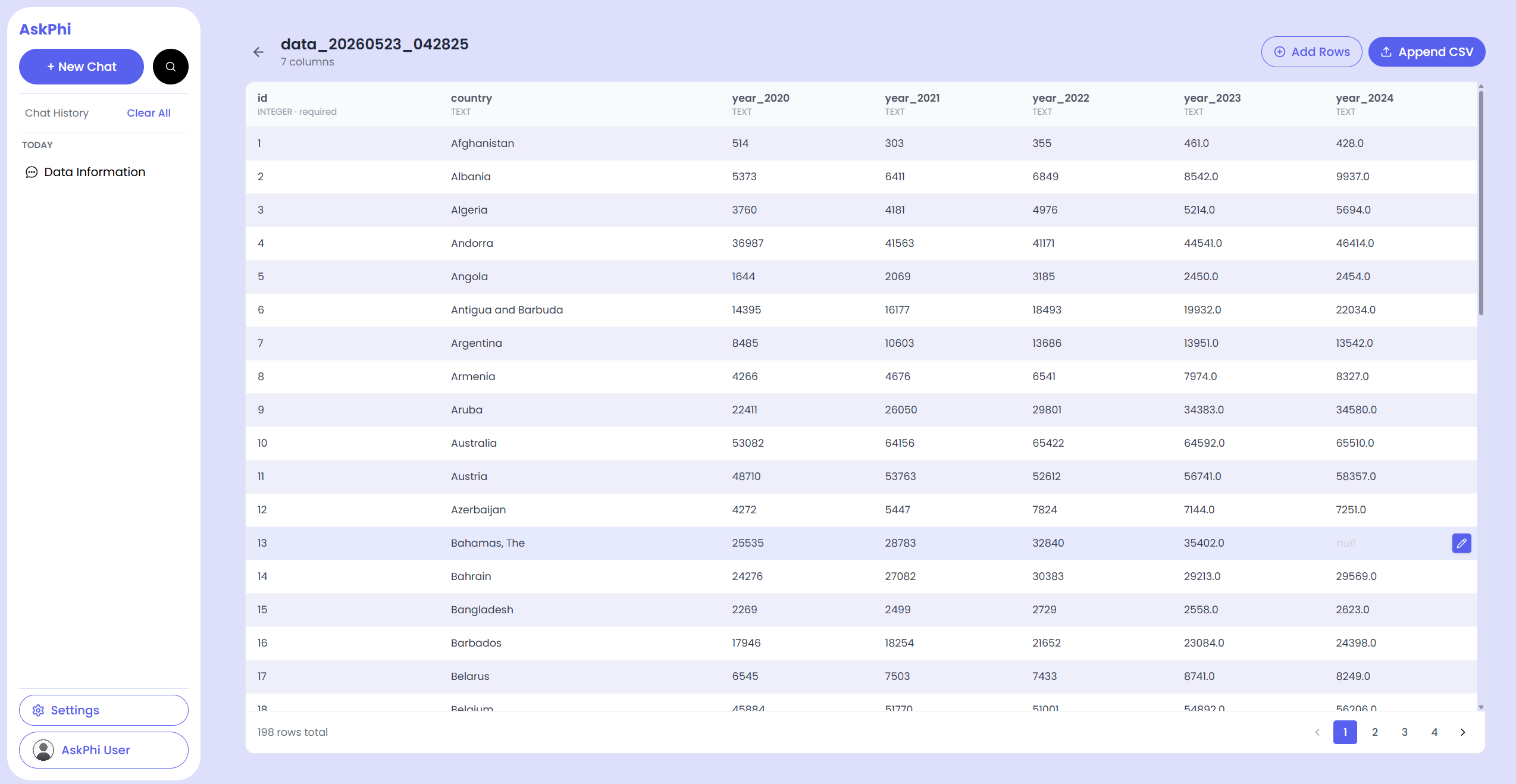
Header
The page header shows:
- A back arrow to return to the chat home.
- The file name.
- The column count ("12 columns").
- Two action buttons on the right:
- Add Rows — opens the Add rows panel.
- Append CSV — opens the Append a CSV panel.
The action buttons appear only after the file's schema (column list) has finished loading.
The data table
Below the header is the table itself.
- Pagination — 50 rows per page; navigate with the page buttons at the bottom.
- Sticky header — column names stay visible while you scroll horizontally on a wide table.
- Row hover — hover a row to reveal an edit pencil at the right.
Edit a single row
- Hover the row you want to change.
- Click the pencil that appears on the right.
- The Edit Row modal opens with one input per column.
- Make changes and click Save.
- A toast confirms and the row updates immediately.
cautionRequired columns (defined by the file's schema) cannot be left empty. If a column is non-nullable, you'll see a validation error.
Empty / loading / error states
| State | What you'll see |
|---|---|
| Loading | A skeleton table with shimmering rows. |
| Empty | A subtle "No rows" placeholder. Use Add Rows or Append CSV to fill it. |
| Error | A red banner with Try again. Click it to refetch. |
Tips
- The editor works on tablets but is much easier on a wider screen.
- You can keep the editor open in one tab and the chat in another while you iterate.