Change password
Update your AskPhi password from inside the app while signed in.
If you've forgotten your password, use Forgot password instead — that flow doesn't require knowing the current one.
Before you start
- You must already be signed in.
- You must remember your current password.
Steps
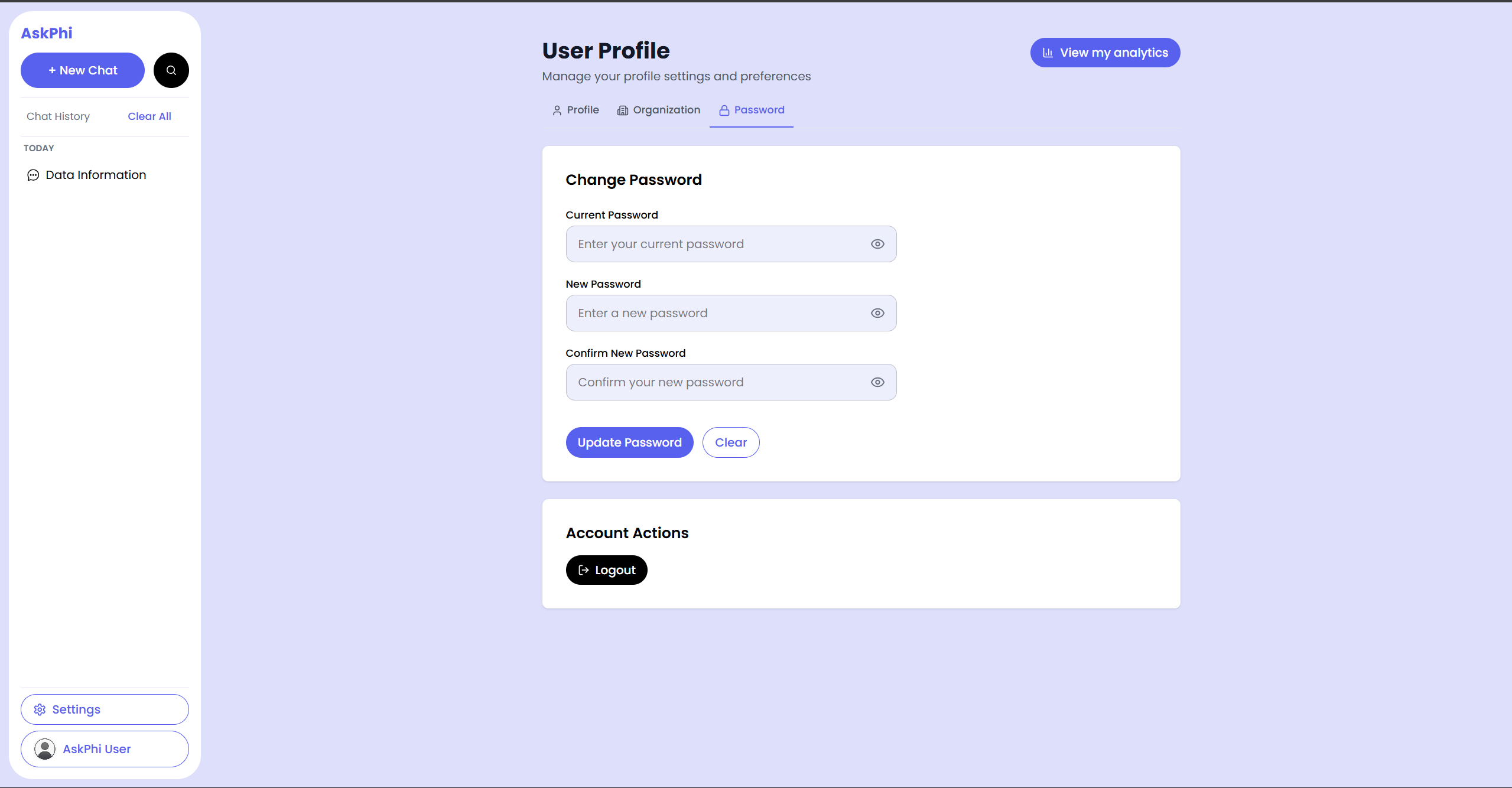
- Open your profile and click the Password tab.
- Fill in:
- Current Password — what you sign in with today.
- New Password — must be at least 8 characters with one uppercase letter, one lowercase letter, and one number.
- Confirm New Password — must match the new password.
- Click Update Password.
A toast says "Password changed successfully!" and the form clears.
Password rules
| Rule | Why |
|---|---|
| 8 character minimum | Defends against simple guessing. |
| At least one uppercase letter | Increases character variety. |
| At least one lowercase letter | Same reason as above. |
At least one digit (0–9) | Same reason as above. |
| Must differ from current password | Avoids "rotating" through the same value. |
Troubleshooting
- "Error changing password" — the Current Password is wrong. Re-enter it carefully (mind the Caps Lock).
- The two new password fields don't match — re-type the Confirm New Password field.
- You forgot your current password — sign out and use Forgot password.